集成开发环境(IDE)是一种帮助程序员高效开发软件代码的软件应用程序。它通过将软件编辑、构建、测试和打包等功能结合到一个易于使用的应用程序中,提高了开发人员的工作效率。就像作家使用文本编辑器,会计师使用电子表格一样,软件开发人员使用 IDE 让他们的工作变得更轻松。当前比较流行的 Python IDE 有 PyCharm, IDEA, VS CODE 等。 Emacs 作为一个可扩展的文本编辑器,处理各种文本数据是非常方便的。我们在 Emacs 里增加 elisp 扩展,就可以模拟各种 IDE 的环境,还能更好。
IDE 的功能
#
需要模拟的 IDE 基本功能应该包含:
代码编辑
语法高亮
文档查找
代码跳转
语法解析
代码规范
代码检查
代码调试
显示
#
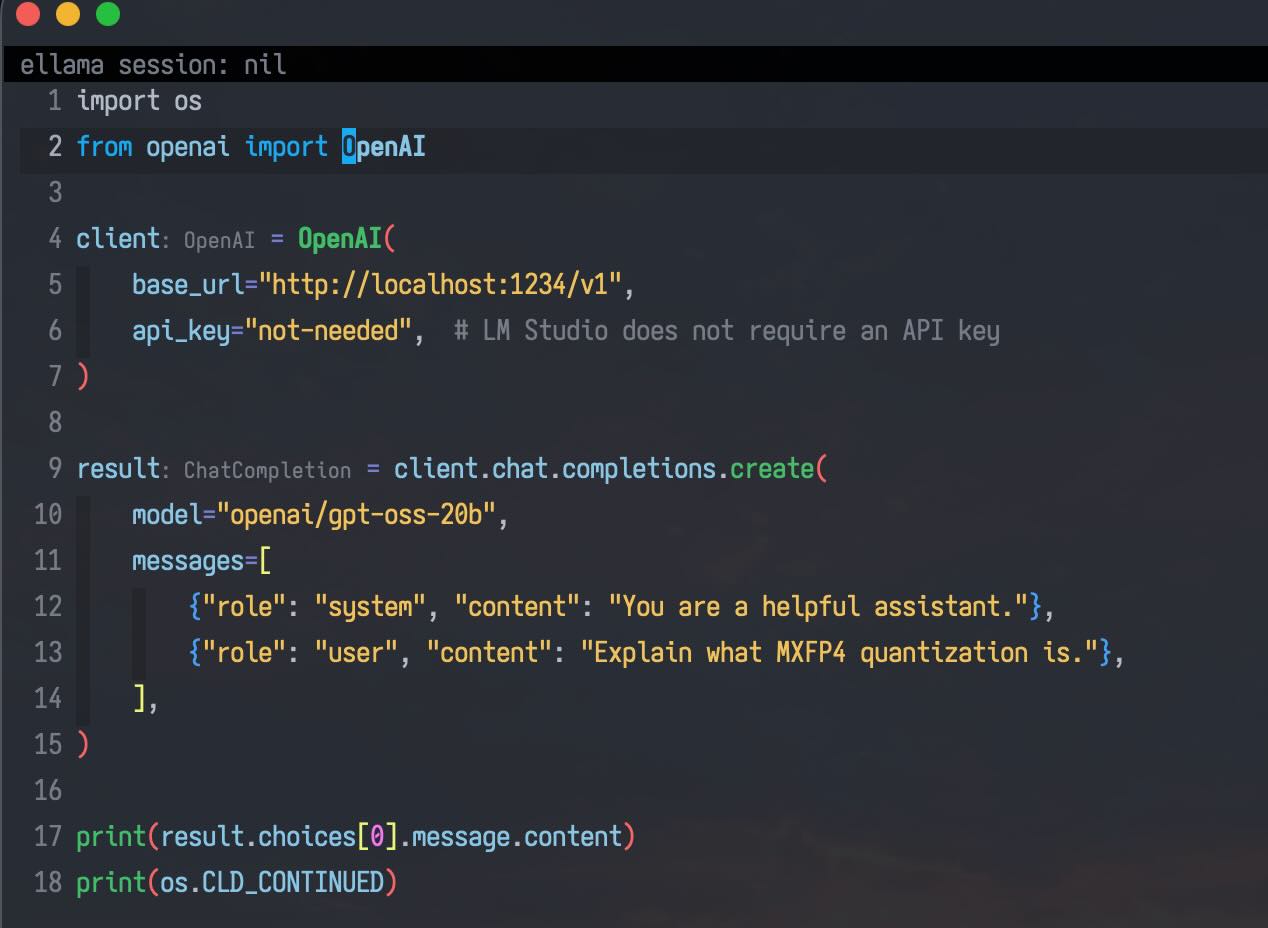
基本的功能应该有:代码编辑和语法高亮。Emacs 里自带的 python-mode 就可以满足要求。当打开一个 .py 结尾的文件时,Emacs 会自动匹配 python-mode 模式。
更好的显示
#
如果觉得基本的 python-mode 不够,可以用更好的语法解析,然后显示。
 1
 2
 3
 4
 5
 6
 7
 8
 9
10
11
12
( use-package tree-sitter
:ensure t
:hook (( python-mode . tree-sitter-hl-mode )
( python-ts-mode . tree-sitter-hl-mode )
)
)
( use-package tree-sitter-langs
:after tree-sitter
:config
( tree-sitter-require 'python )
)
有时候 Emacs 升级了之后, tree-sitter 版本不匹配,可以手动编译 tree-sitter-langs ,然后把编译好的 dylib 文件拷贝到 ~/.emacs.d/tree-sitter 目录下,取名为 libtree-sitter-python.dylib
设置好了之后,语法高亮就比较漂亮了。
文档说明
#
编程需要时时地查找某个函数的说明、用法等。我们采用 eldoc 宏包处理。
1
2
3
4
5
6
7
8
( use-package eldoc
:ensure t
:defer t
:init
( global-eldoc-mode )
)
( global-set-key ( kbd "C-x c d" ) 'eldoc-doc-buffer )
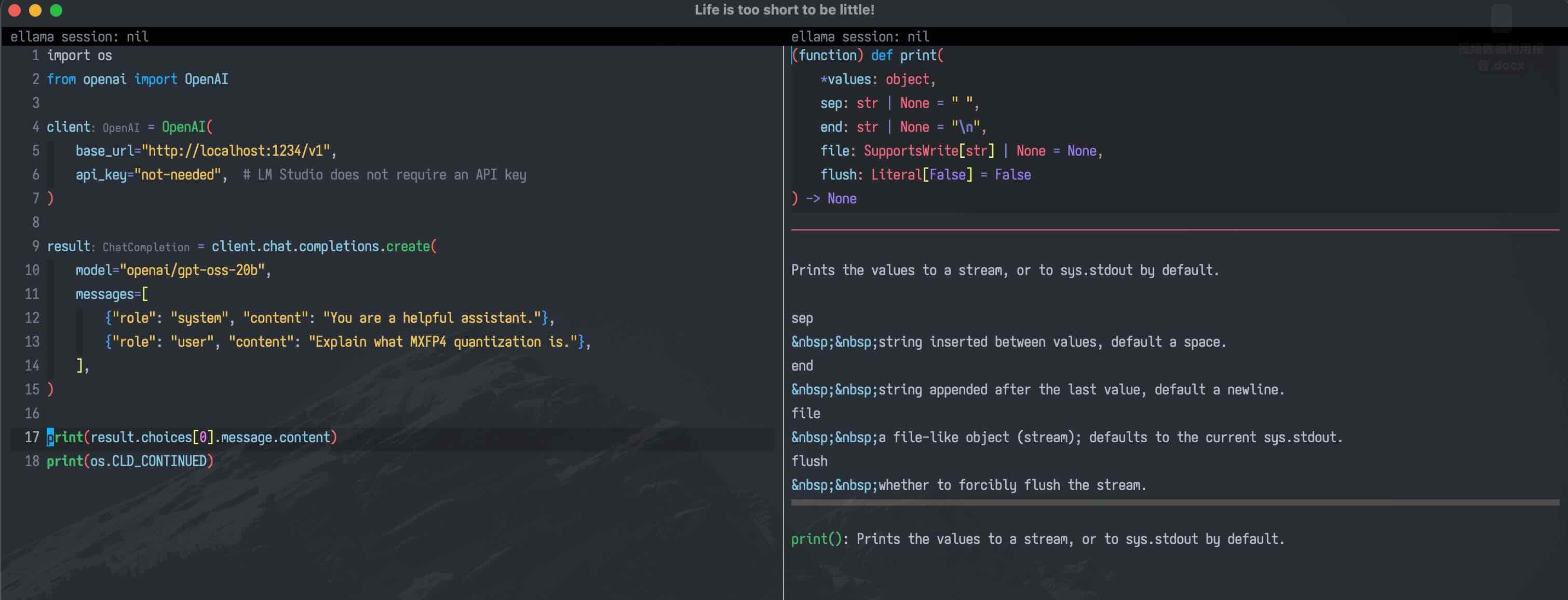
当光标放在某个函数/变量上时,用快捷键 C-x c d 或者 M-x eldoc 就可以显示它的资料
说明—一般就是把函数定义里的说明信息显示出来。 比如,
更好的文档
#
eldoc 能够识别很多编程语言,既然通用性强,专业性就要稍稍弱一点。因此,我们可以用专门针对 python 语言的文档说明—elpy 。
1
2
3
4
5
( use-package elpy
:ensure t
:init
( elpy-enable )
)
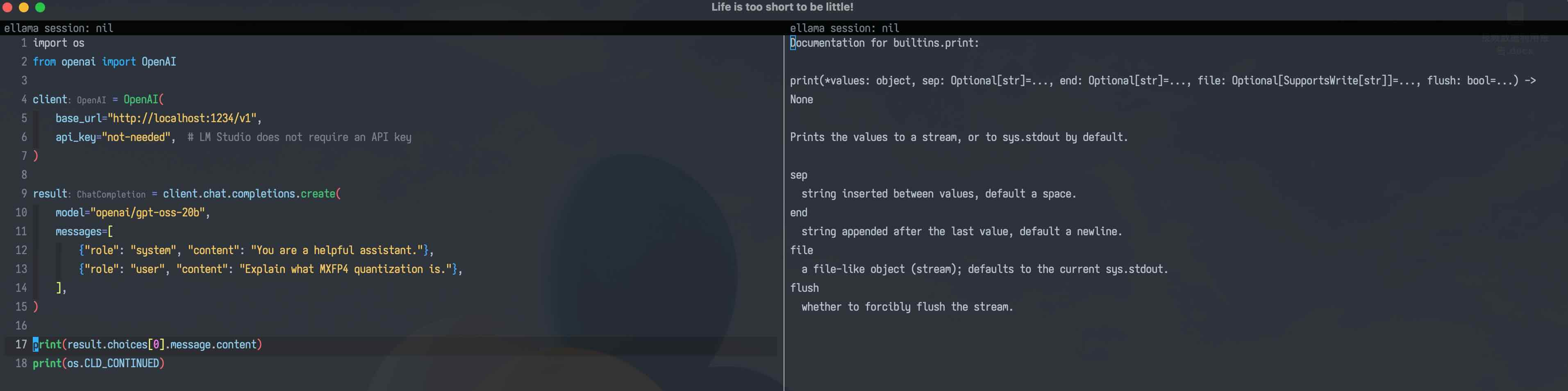
当按下快捷键 C-c C-d 或者 M-x elpy-doc 时,就可以在 elpy 的 buffer 里显示文档。
比如,
elpy 不仅仅是 python 的文档调用,它包含了更多的 python 环境设置(后面我会讲到其他的应用),这里只是显示了它的文档显示功能。
语法检查
#
python 代码是否符合语法,我们可以用专门的检查工具来判断。最常用的有 flycheck 和
flymake 两种。我倾向于用 flycheck+ ,还是用 flymake 吧,Emacs 30 之后,就完全内
置了,对 ruff 的支持也非常好。
1
2
3
4
5
6
( use-package flymake
:ensure t
:custom (( flymake-start-on-flymake-mode nil )
( flymake-no-changes-timeout nil )
( setq flymake-show-diagnostics-at-end-of-line t )
( flymake-start-on-save-buffer t )))
如果发现代码里有红色的波浪线显示,就表示发现了语法错误,请尽快修改。
更好的语法检查
#
flymake 默认调用了 flake8 或者其他工具来进行语法检查,我们可以把这些工具换成最新最快的工具—- ruff 。
 1
 2
 3
 4
 5
 6
 7
 8
 9
10
;; 通过 use-package 安装 flymake-ruff
( use-package flymake-ruff
:ensure t
:hook (( python-mode . flymake-ruff-load ) ; 传统 python-mode
( python-ts-mode . flymake-ruff-load )) ; Tree-sitter 版
:config
( setq flymake-ruff-program-args ' ( "--quiet" "--output-format=concise" ))
( setq flymake-show-diagnostics-at-end-of-line t ) ; 行尾显示
( setq flymake-no-changes-timeout nil ) ; 实时检查
)
单独的检查函数
#
还可以单独定义一个检查函数,方便查看。
 1
 2
 3
 4
 5
 6
 7
 8
 9
10
11
12
13
14
15
16
17
18
19
20
21
22
23
24
;; 定义ruff-check 修复命令
( reformatter-define ruff-check
:program "ruff"
:args ' ( "check" "--fix" "-" )
:lighter " RuffCheck"
)
; 单独再定义一个检查函数
( defun ruff-check ()
( interactive )
( let (( current-file ( buffer-file-name )))
( if current-file
( async-shell-command
( format "ruff check --select ALL %s" ( shell-quote-argument current-file ))
)
)
)
)
;; 在python mode中,保存时自动运行ruff-format
( add-hook 'python-mode-hook
( lambda ()
( add-hook 'before-save-hook #' ruff-format-region nil t ))
)
ruff 需要单独安装,用 pip 或者 brew 都可以,只要系统的命令行可以找到它就行。
代码跳转
#
在书写/阅读代码时,常常需要从当前使用函数的位置,跳转到函数的定义位置。 elpy 就
直接支持这个功能 — 在函数名的位置处,按下快捷键 C-c . 或者 M-x elpy-goto-definition 或者 M-x elpy-goto-definition-other-window (在新窗口打开定义文件),就可以跳转到函数的定义,即使定义是在另一个文档里也不要紧,
elpy 都自动打开那个文档,把光标放在函数的定义处。
按下 M-, ,就可以返回到原来的位置。
更好的跳转
#
我们可以用 xref 实现更好的跳转
C-x C-. or M-x xref-find-definitinsC-x C-/ or M-x xref-find-references
然后用 C-x C-, or M-x xref-pop-marker-stack or M-, 返回原位置。
更全面的跳转
#
有时候,项目内的模块, elpy 和 xref 都找不到,我们就自己定义一个函数,功过 egrep 来找到函数定义,然后手动打开
 1
 2
 3
 4
 5
 6
 7
 8
 9
10
11
12
13
14
15
( defun elpy-goto-definition-or-rgrep ()
"Go to the definition of the symbol at point, if found. Otherwise, run `elpy-rgrep-symbol' ."
( interactive )
( if ( version< emacs-version "25.1" )
( ring-insert find-tag-marker-ring ( point-marker ))
( xref-push-marker-stack ))
( condition-case nil ( elpy-goto-definition )
( error ( elpy-rgrep-symbol
( concat "\\(def\\|class\\)\s" ( thing-at-point 'symbol ) "(" )))))
( define-key elpy-mode-map ( kbd "C-c ." ) 'elpy-goto-definition )
( define-key elpy-mode-map ( kbd "C-c d" ) 'elpy-goto-definition-or-rgrep )
( define-key elpy-mode-map ( kbd "C-x C-." ) 'xref-find-definitions )
( define-key elpy-mode-map ( kbd "C-x C-/" ) 'xref-find-references )
( define-key elpy-mode-map ( kbd "C-x C-," ) 'xref-pop-marker-stack )
当按下 C-c d or M-x elpy-goto-definition-or-rgrep 时,就会把所有相关的 class 和 def 定义文件都找到。
代码补全
#
程序员通常都很懒,写代码的时候,如果能够只敲一两个字符,系统能够猜出来接下来要写什么就好了,直接按回车键或者 TAB,就把剩下的字符都自动补全了。Emacs 当然也有这样的插件 — company :complete anything.
 1
 2
 3
 4
 5
 6
 7
 8
 9
10
11
12
13
14
15
16
17
18
19
20
21
22
23
24
25
26
27
28
29
30
31
32
33
34
35
36
37
38
39
40
41
42
43
44
45
( use-package company
:ensure t
:init
( add-hook 'c-mode-common-hook 'company-mode )
( add-hook 'python-mode-common-hook 'company-mode )
:config
( eval-after-load 'c-mode ' ( define-key c-mode-map ( kbd "[tab]" ) 'company-complete ))
( setq company-backends ' (( company-capf
company-keywords
company-semantic
company-files
company-dabbrev
company-dabbrev-code
company-etags
company-clang
company-cmake
company-yasnippet )))
( setq company-tooltip-limit 20
company-tooltip-offset-display 'lines
company-tooltip-minimum 4
company-tooltip-flip-when-above t
company-tooltip-margin 3
company-tooltip-align-annotations t ; 对齐注释
company-tooltip-annotation-padding 1
company-text-face-extra-attributes ' ( :weight bold :slant italic )
company-text-icons-add-background t
company-echo-delay 0
company-require-match nil
company-minimum-prefix-length 1 ; 只需敲 1 个字母就开始进行自动补全
company-show-numbers t ; 给选项编号 (按快捷键 M-1、M-2 等等来进行选择).
company-dabbrev-other-buffers t
company-dabbrev-ignore-case 'keep-prefix
company-selection-wrap-around t
company-show-quick-access 'left
company-idle-delay 0
company-tooltip-idle-delay 10
company-require-match nil
company-frontends ' ( company-pseudo-tooltip-unless-just-one-frontend-with-delay
company-preview-frontend
company-echo-metadata-frontend )
company-backends ' ( company-capf )
company-files-exclusions ' ( ".git/" ".DS_Store" )
)
( global-company-mode 1 )
)
可以看出, company 能识别很多种语言,python 当然也支持了。
LSP
#
LSP 是 Language Server Protocol 的缩写,该协议被用在编辑器或 IDE 与语言服务器之间,为编辑器提供自动补全,跳转到定义和引用查找等功能。以下内容来自 LSP 官网:
Adding features like auto complete, go to definition, or documentation on hover for a programming language takes significant effort. Traditionally this work had to be repeated for each development tool, as each tool provides different APIs for implementing the same feature.
A Language Server is meant to provide the language-specific smarts and communicate with development tools over a protocol that enables inter-process communication.
The idea behind the Language Server Protocol (LSP) is to standardize the protocol for how such servers and development tools communicate. This way, a single Language Server can be re-used in multiple development tools, which in turn can support multiple languages with minimal effort.
为一种编程语言添加自动补全,跳转到定义或悬停文档等功能需要很大的努力。在过去需要为每个开发工具重复这项工作,因为每个工具都提供不同的 API 来实现相同的功能。
语言服务器旨在提供特定语言的功能,并通过支持进程间通信的协议与开发工具进行通信。
语言服务协议(LSP)背后的想法是对此类服务器和开发工具如何通信的协议进行标准化。这样,单个语言服务器可以在多个开发工具中重复使用,从而可以以最小的努力支持多种语言。
这样,我们只需在 Emacs 里设置一个客户端,用来对接外部的 python 语言服务器程序,充分利用服务器的所有功能即可。
服务器
#
当前支持 python 最好的语法解析工具是微软开发的 pyright ,以及它的分支
basedpyright 。基本用法是一样的,后者支持更多的功能。它们都可以通过 pip 或者
brew 单独安装。
客户端
#
Emacs 里最流行的 LSP 客户端有三个:
lsp-mode (不要与 LSP 服务器混淆了)
eglot
lsp-bridge
其中,Emacs 内置了 Eglot,所以最轻量级,但基本满足了需求。除非有特殊的要求,不要轻易使用 lsp-mode,它启动太慢了。
配置
#
 1
 2
 3
 4
 5
 6
 7
 8
 9
10
11
12
13
14
15
16
17
18
19
20
21
22
23
24
25
26
27
28
29
30
31
32
33
34
35
36
37
38
39
40
41
42
43
44
45
( use-package eglot
:ensure t
:defer t
:bind ( :map eglot-mode-map
( "C-c C-d" . elpy-doc )
( "C-c C-e" . eglot-rename )
( "C-c C-o" . python-sort-imports )
( "C-c C-f" . eglot-format-buffer ))
:hook (( python-mode . eglot-ensure )
( python-mode . flyspell-prog-mode )
( python-mode . superword-mode )
( python-mode . hs-minor-mode )
( python-mode . ( lambda () ( set-fill-column 88 ))))
:config
;; 用basedpyright替换默认pylsp
;; 它会提供补全、跳转定义等功能,但诊断信息交给 flycheck
( add-to-list 'eglot-server-programs
' ( python-mode . ( "basedpyright-langserver" "--stdio" ))
)
;; 关闭 pyright 的 linting,由 ruff 处理
( setq eglot-workspace-configuration
' (( :python ( :analysis ( :typeCheckingMode . "basic" )
( :lintingMode . "off" )
( :reportMissingImports . true )))))
( setq eglot-ignored-server-capabilities
' ( :diagnosticProvider )) ; 只让 Flymake 报告 lint
;; 日志级别(调试时用 'debug',日常用 'warning')
( setq eglot-log-level 'warning )
:init
( setq completion-category-overrides
' (( eglot ( styles orderless ))))
)
;; 保存时自动格式化(使用 eglot 内建格式化)
( add-hook 'python-mode-hook
( lambda ()
( add-hook 'before-save-hook 'eglot-format-buffer nil t ))
)
;; 启动成功提示
( add-hook 'eglot-managed-mode-hook
( lambda ()
( message "[EGLOT] Connected to basedpyright" ))
)
可以看出,eglot 帮助 Emacs 对接了很多外部服务: basedpyrigh, elpy, flyspell,
……。它接受 basedpyright 等处理 python 代码后发来的信息,然后交给相应的工具去
处理, eglot 再最后统一显示出来。比如,我们可以在调用 flymake 进行语法检查,
1
( add-hook 'eglot-managed-mode-hook #' flymake-ruff-load )
代码格式化
#
很多人写 python 代码,都不是很规范。由于 python 对格式有比较强的要求,不像 C/C++ 语言是自由格式。所以,我们可以用专门的工具来规范化代码。这里,仍然可以用 ruff 来完成此功能。
 1
 2
 3
 4
 5
 6
 7
 8
 9
10
11
12
13
14
15
16
17
18
19
20
21
22
23
24
25
26
27
28
29
30
31
32
( use-package ruff-format
:ensure t
:after ( flymake ruff )
)
( use-package reformatter
:ensure t
:hook
( python-mode . ruff-format-on-save-mode )
( python-ts-mode . ruff-format-on-save-mode )
:config
;; 定义ruff-format格式化命令
( reformatter-define ruff-format
:program "ruff"
:args ' ( "format" "--stdin-filename" , buffer-file-name "-" )
:lighter " UrffFmt"
)
)
( defcustom ruff-format-import-command "ruff"
"Ruff command to use for formatting."
:type 'string
:group 'ruff-format-import )
;;;###autoload (autoload 'ruff-format-import-buffer "ruff-format-import" nil t)
;;;###autoload (autoload 'ruff-format-import-region "ruff-format-import" nil t)
;;;###autoload (autoload 'ruff-format-import-on-save-mode "ruff-format-import" nil t)
( reformatter-define ruff-format-import
:program ruff-format-import-command
:args ( list "check" "--fix" "--select=I" "--stdin-filename" ( or ( buffer-file-name ) input-file ))
:lighter " RuffFmt"
:group 'ruff-format-import )
文件保存时,代码会自动被格式化。
至此,我们已经打造了一个漂亮好用的 Python IDE。Enjoy it.